Why sign offline?
The documents people sign are usually the private ones: employment contracts, tenancy agreements, bank forms, visa and ID applications, NDAs. Online "sign PDF" sites work by uploading that file to their server. Signing on your own PC keeps the only copy with you, works without internet, and has no daily limits or watermarks.
Signature image or digital signature?
- Signature image (electronic signature): your typed, drawn or scanned signature placed on the page, like signing on paper. This is what most forms and everyday agreements ask for.
- Digital signature (certificate): a cryptographic seal made with a certificate. Anyone can check who signed and whether the file was changed afterwards. Governments, banks and some companies require this kind.
If you are not sure which one is needed, ask the person who sent the document. Many use the word "digital signature" for both.
Step 1: fill in the form in MadPDF
- Download MadPDF (free, no account) and install it on Windows 10 or 11.
- Open the PDF and choose Fill & Sign from All tools.
- If the PDF has form fields, click into each one and type. Tick boxes and choose options the same way.
- If it's a flat PDF with no fields (a scanned form, for example), use Type text and click where the text should go.
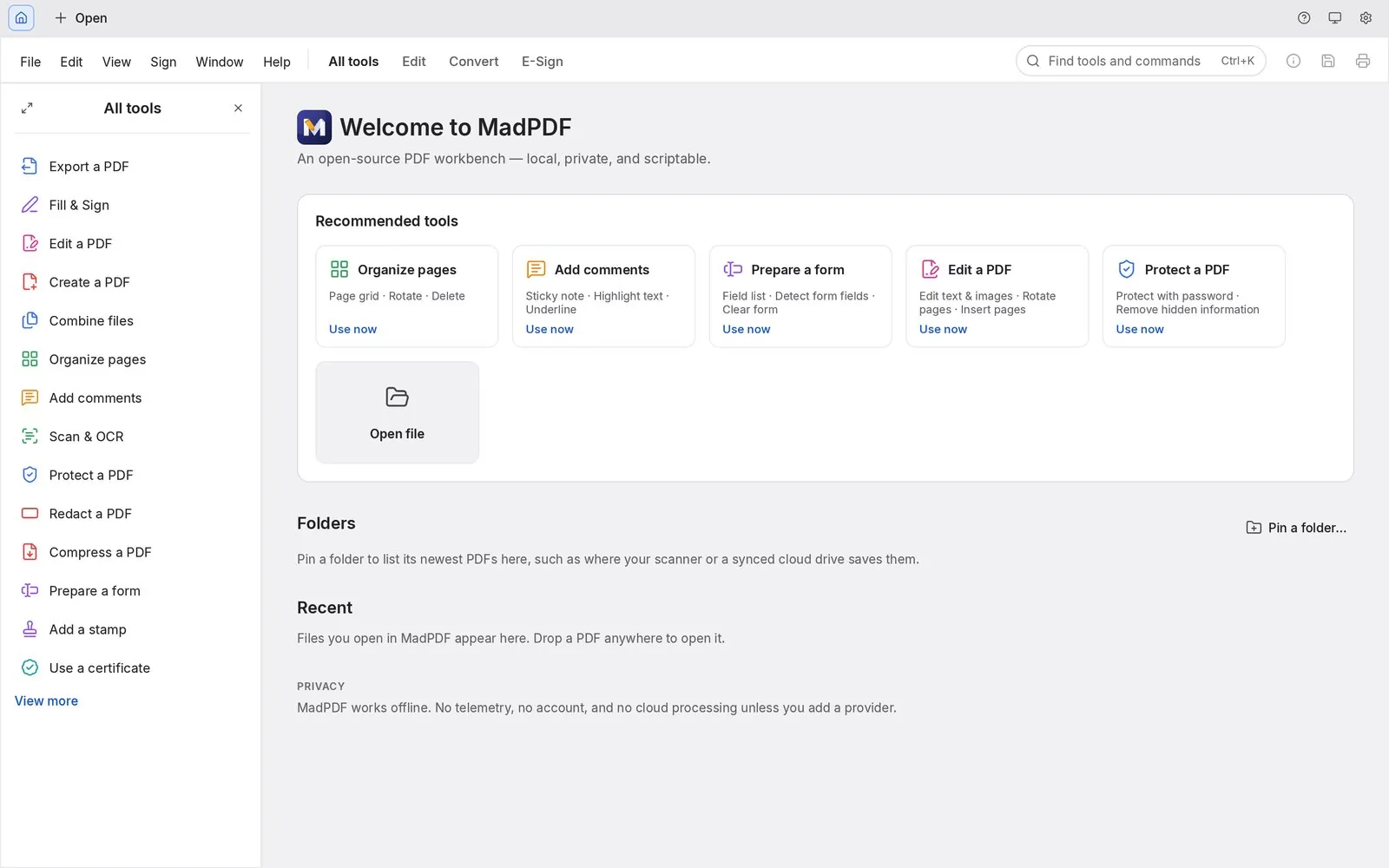
Want a reusable form with real fields for others to fill? Use Prepare a form; MadPDF can detect the fields for you.
Step 2: add your signature or initials
- In Fill & Sign, choose to add a signature (or initials).
- Create it one of these ways:
- Type: type your name and it is set in a handwriting style.
- Draw: draw it with the mouse, a touchpad or a pen.
- Image: choose a PNG or JPEG of your signature (up to 4 MiB). Transparency is kept, so a signature on a transparent background sits cleanly on the line.
- Click Apply, place the signature on the line and resize it.
- Save the PDF, or use Save As to keep the unsigned original.
Tip for a clean image signature: sign on plain white paper with a dark pen, take a straight, well-lit photo, and crop it tightly.
Signing with a certificate (digital signature)
If the document needs a verifiable signature, use Use a certificate in MadPDF with a certificate installed on your PC (for example one issued by your company or a national ID provider). You can add a trusted timestamp so the signing time can be proven, and keep the signature verifiable for years with long-term validation (LTV). MadPDF contacts the timestamp or certificate server only at that moment; the document itself is not uploaded.
Without installing anything
Microsoft Edge can open PDFs and lets you type into form fields and draw on the page, which is enough for a simple form. It can't place a reusable signature image, add initials across pages, build forms or sign with a certificate.
Tips
- Sign last. Any change after a certificate signature invalidates it. Fill everything in first, then sign.
- Check every page. Many contracts need initials on each page and a full signature on the last.
- Keep a copy of the signed PDF before you send it.
- Arabic forms: MadPDF types right to left and joins Arabic letters correctly in form fields. See editing Arabic PDFs.