Why Arabic breaks in most PDF editors
If you have ever changed one word in an Arabic PDF and got letters that are reversed, disconnected (ف ا ت و ر ة instead of فاتورة) or turned into boxes, these are the usual causes:
- Letter joining (shaping). An Arabic letter has up to four shapes depending on its neighbours. A PDF stores the final shapes, and an editor that doesn't understand Arabic puts back the isolated forms.
- Direction. Arabic runs right to left, but numbers and English words inside it run left to right. A tool without proper bidirectional handling scrambles mixed lines like invoice 25-2024 رقم.
- Subset fonts. PDFs usually embed only the letters they use. Type a letter that isn't in the embedded font and it can't be drawn.
Step 1: is the Arabic real text or a scan?
Open the PDF and try to select a word with the mouse:
- The word highlights and you can copy it into Notepad as readable Arabic → it is real text. Go to Step 2.
- The whole page selects like a picture, or nothing selects → it is a scanned image. Go to OCR first.
- It highlights but pastes as gibberish → the PDF has text but no proper character mapping. Treat it like a scan and run OCR.
Step 2: edit the Arabic text in MadPDF
- Download MadPDF (free, no account) and install it on Windows 10 or 11.
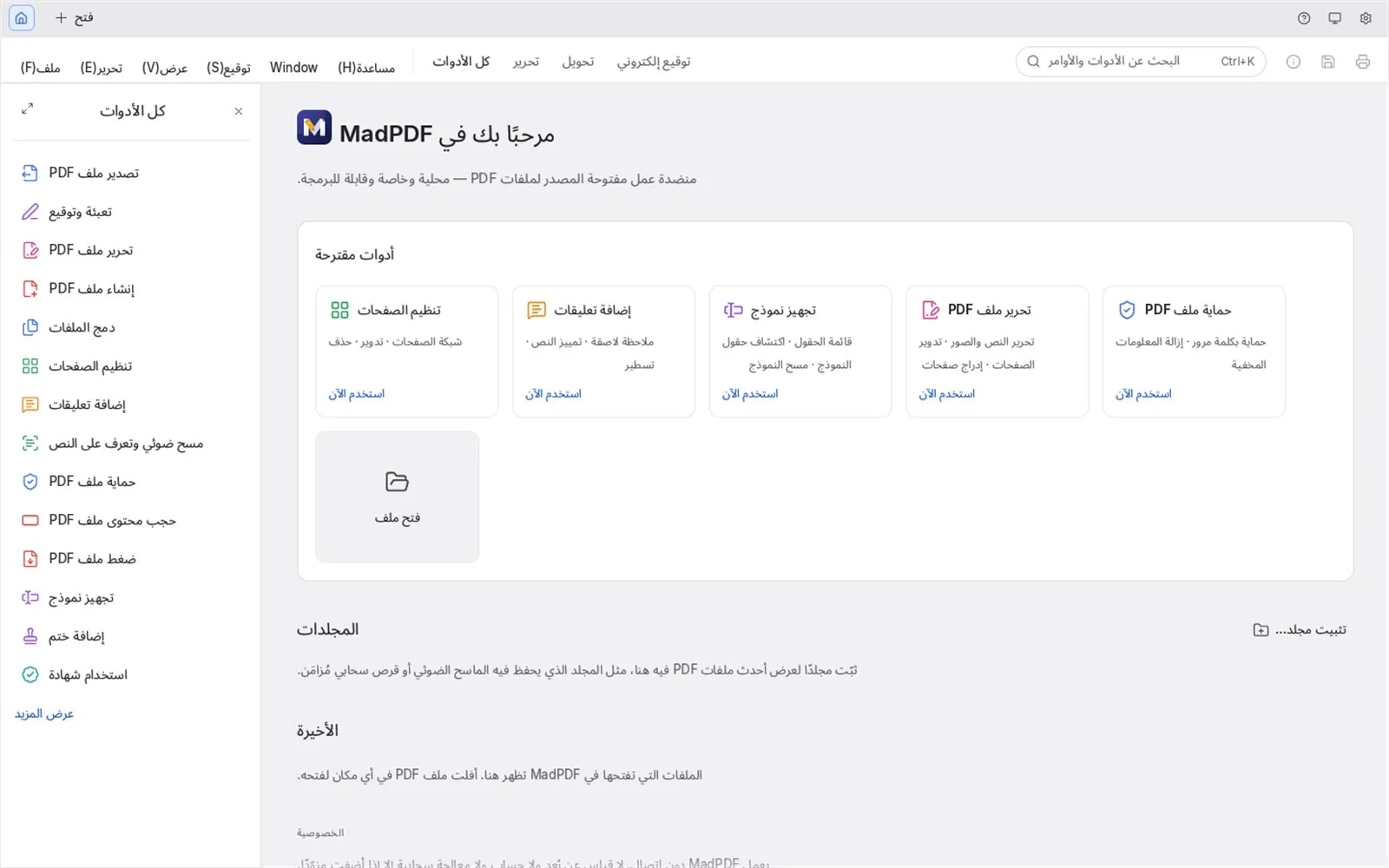
- Optional: switch the interface to Arabic. The whole app then lays out right to left.
- Open your PDF and choose Edit text & images.
- Click into the Arabic line and type. MadPDF types right to left, joins the letters correctly and keeps English words and numbers in the right order inside the line.
- Save. MadPDF keeps the original font where the PDF allows it (see the tip on subset fonts below).
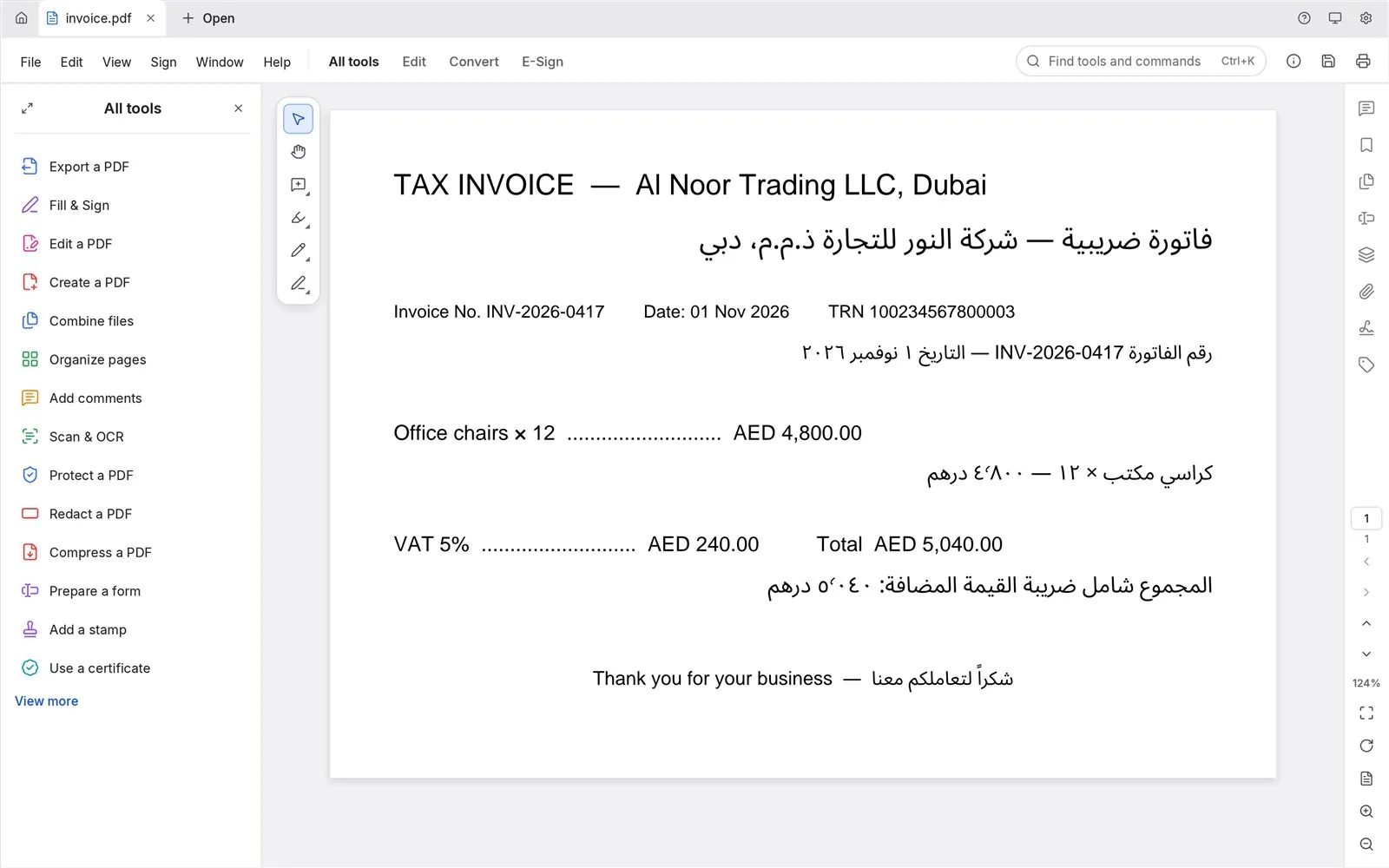
The same right-to-left handling applies when you fill forms, add comments or export to Word or Excel: Arabic stays right to left in the exported file.
If it is a scan: run Arabic OCR first
A scanned page is a photo of text, so there is nothing to edit yet. Use Scan & OCR in MadPDF and choose Arabic (or English and Arabic for mixed pages). MadPDF recognises the text on your PC and adds a searchable text layer, so you can select, copy and search it. To keep editing in Word, follow our guide to converting a scanned Arabic PDF to Word.
Tips for clean results
- Missing letters? The PDF embeds only part of its font. Short fixes usually work; if a letter you need is not in the embedded font, make the change in Word instead (next tip).
- Long changes? Replacing a whole paragraph is often cleaner in Word: export to Word, edit, and create the PDF again.
- Numbers: Arabic documents may use Western (123) or Eastern Arabic (١٢٣) digits. Type the same kind the document already uses.
- Signed documents: editing a digitally signed PDF invalidates the signature. Edit first, then sign.
- Something looks wrong? Send it to us through Help ▸ Send Feedback in MadPDF, so we can fix it.
What about online Arabic PDF editors?
Browser-based editors are convenient for public documents. For contracts, tax invoices, Emirates IDs, payslips and medical forms, uploading the file means a copy now sits on someone else's server. MadPDF opens, edits and saves the PDF on your own PC. It goes online only to check for updates, to reach a timestamp or certificate server when you sign, or when you choose to send feedback.