Merge (combine) PDFs into one file
- Download MadPDF (free, no account) and install it on Windows 10 or 11.
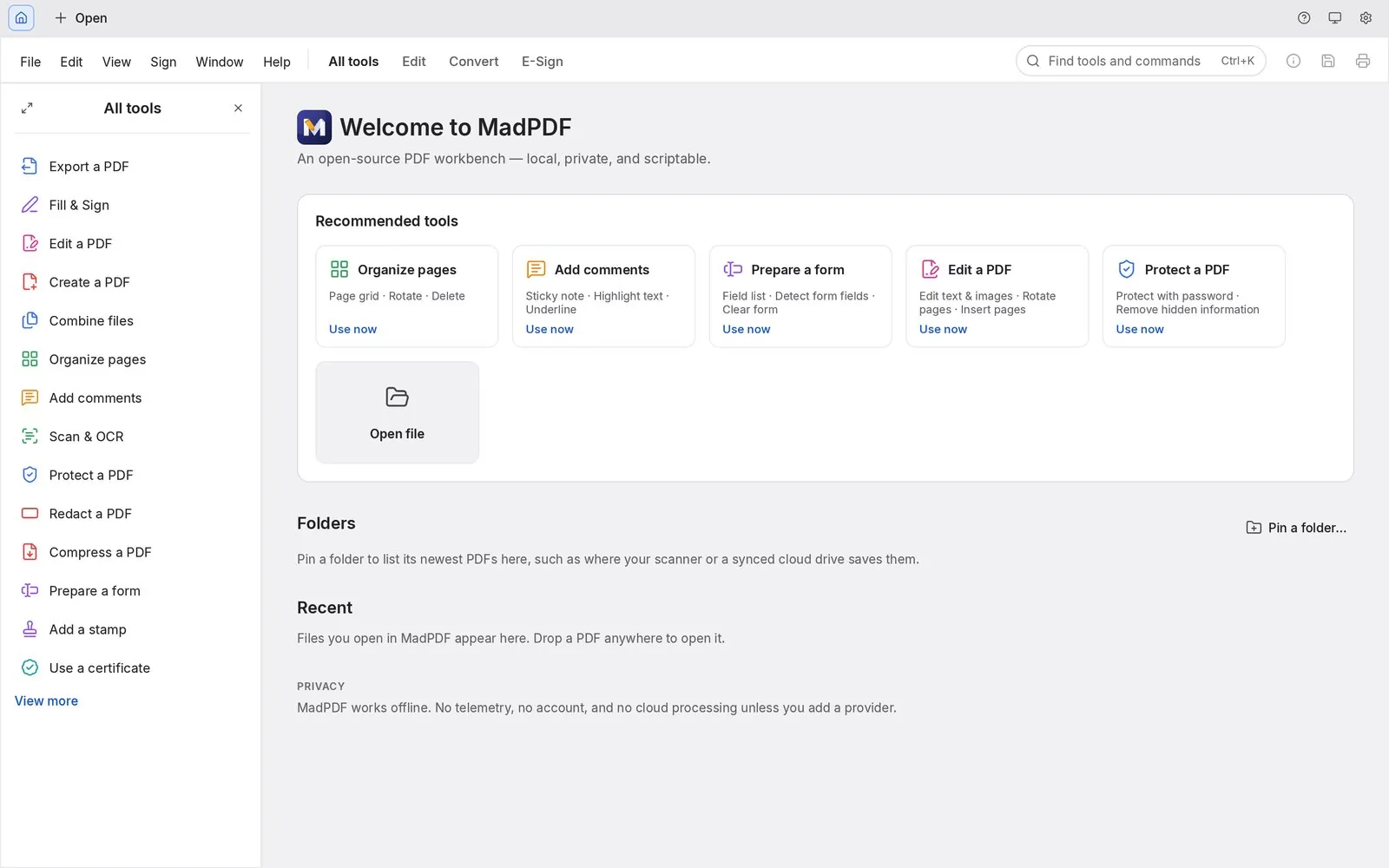
- Choose Combine files from All tools.
- Add your files with Add files…, Add folder… (or Add folder and subfolders…), Add open documents, or just drop them in. Images and text files can go in too; they become PDF pages.
- Drag the files into the order you want. Files are combined from top to bottom.
- Need only some pages from a file? Type them in its Pages box (for example
1-3, 7). Leave it empty to take every page. - Press Combine and save the new PDF.
Password-protected files: MadPDF asks for the password that opens the file (or the permissions password, if combining is restricted). The password is only used to read the file and isn't saved.
Split a PDF into several files
- Open the PDF and choose Organize pages.
- Choose Split.
- Pick how to split:
- Number of pages: for example every 10 pages, so a 95-page scan becomes ten files.
- File size: each file holds as many pages as fit under the size you set. Handy for email attachment limits.
- Top-level bookmarks: one file per chapter or section.
- Before each selected page: select the first page of each part in Organize, and MadPDF splits there.
- MadPDF shows how many files it will create. Press Split.
Extract, reorder, rotate or delete pages
Organize pages shows every page as a thumbnail. Select pages, then:
- Extract pages to a new document, or as separate files, with the option to delete them from the original.
- Drag pages to reorder them.
- Rotate clockwise or counterclockwise (fixes sideways scans).
- Delete, duplicate or replace pages.
- Insert a blank page or pages from another file.
With only what Windows has
Windows has no PDF merge tool, but it can extract pages: open the PDF in Microsoft Edge, press Ctrl+P, choose Microsoft Print to PDF, set the pages (for example 4-9) and print to a new file. The result is a re-printed copy, so links, bookmarks and form fields are lost. For merging, splitting into many files or keeping the original quality, use a PDF editor.
Why not an online merge site?
Merge and split sites are fine for public documents. For bank statements, contracts, payslips, invoices or ID scans, uploading means a copy of each file is stored on someone else's server, and many sites limit file size, the number of files or how often you can use them. MadPDF does the same job on your PC, works offline, and never uploads your files.