Before you start: get a good scan
OCR quality depends mostly on the image. Arabic is harder than English because dots above and below letters carry meaning, so small, blurry or skewed scans lose them first.
- Scan at 300 dpi (200 dpi is the minimum for normal-size text).
- Prefer greyscale or black and white for plain documents; colour adds file size, not accuracy.
- Keep the page straight and flat; phone photos work if the page fills the frame and is evenly lit.
- Stamps, signatures and handwriting over the text will not be read reliably. Printed text is what OCR is for.
Step 1: run Arabic OCR in MadPDF
- Download MadPDF (free, no account) and install it on Windows 10 or 11.
- Open the scanned PDF (or an image of the page: MadPDF turns images into PDF too).
- Choose Scan & OCR and set the language to Arabic, or English and Arabic for bilingual pages such as invoices.
- Run it. Recognition happens on your PC; nothing is sent anywhere. MadPDF adds an invisible, searchable text layer under the page image.
Step 2: check the recognised text
Before exporting, press Ctrl+F and search for a word you can see on the page, or select a line and copy it into Notepad. If the search finds it and the pasted Arabic reads correctly, the OCR is good. If not, see fixing common problems.
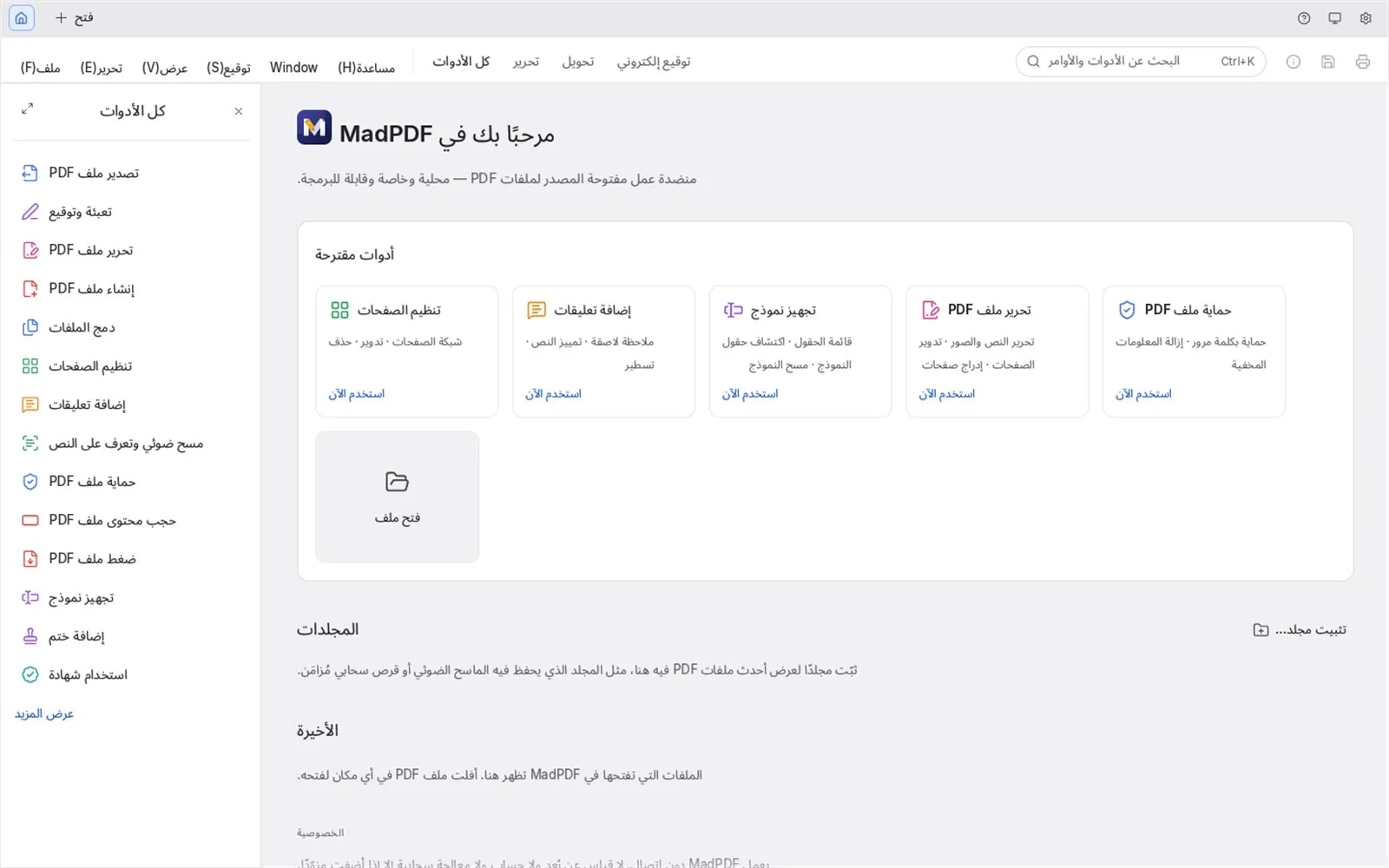
Step 3: export to Word
- Choose Export and pick Word.
- Open the .docx in Microsoft Word or LibreOffice. Arabic paragraphs are right to left, and English words and numbers inside them stay in order.
- Expect to tidy the layout: OCR rebuilds text and paragraphs, not every table border or text box. For forms and tables, Excel export is often cleaner.
You only need Microsoft Word or LibreOffice to open the exported file. LibreOffice is needed by MadPDF only for the opposite direction, turning Word, Excel or PowerPoint files into PDF.
Fixing common problems
| Problem | Likely cause | Fix |
|---|---|---|
| Missing or wrong dots (ب / ت / ث) | Low resolution or blur | Rescan at 300 dpi, sharper and straighter |
| Words in the wrong order | OCR ran as English only | Run again with Arabic, or English + Arabic |
| Letters come out as ? or boxes | The text layer was made by another tool without Arabic support | Start again from the original scan and run Arabic OCR in MadPDF |
| Table falls apart in Word | Word rebuilds tables approximately | Export that page to Excel instead |
| Nothing selectable after OCR | Page was very faint or skewed | Improve contrast, straighten the page, run again |
Other ways, and their trade-offs
- Online OCR websites: quick for a public flyer, but the document is uploaded to a third-party server, which is a poor fit for contracts, IDs or tax invoices, and many limit pages per day.
- Retyping: accurate but slow; fine for one page, not for fifty.
- Desktop OCR in MadPDF: runs offline, handles English and Arabic on the same page, and leaves you a searchable PDF as well as the Word file.
Need to change a few words in a PDF instead of moving to Word? Read how to edit Arabic text in a PDF.