First: your own IP address and subnet
Open Command Prompt and run:
ipconfigLook at your network adapter. IPv4 Address is your PC (for example 192.168.1.25) and Default Gateway is usually the router (192.168.1.1). With a 255.255.255.0 subnet mask, every device on the same network has an address from 192.168.1.1 to 192.168.1.254. That is the range you will search.
Method 1: ask the device itself
Many devices will simply tell you:
- Printers: print a network configuration or status page from the printer's menu, or look in Settings → Network on its screen. If the printer is already installed on your PC, open Settings → Bluetooth & devices → Printers & scanners, choose the printer, open Printer properties and check the Ports tab.
- Phones and tablets: Wi-Fi settings → the connected network → details.
- IP cameras and NVRs: the recorder's own screen usually lists its cameras' addresses. For loose cameras see how to find every IP camera on your network.
Method 2: the router or firewall client list
Open the router's web page (the Default Gateway address in a browser) and look for DHCP clients, Connected devices or Client list. It shows the IP, MAC and often the name of every device that got its address from the router.
The catch: devices with a fixed (static) IP never ask the router for an address, so they are often missing. Printers, cameras, NVRs and switches are exactly the devices that tend to have static IPs.
Method 3: by name, with ping and nslookup
If you know the device's network name (a PC name, or a printer name such as HPLJ-RECEPTION):
ping -4 HPLJ-RECEPTION
nslookup HPLJ-RECEPTION
ping -4 shows the IPv4 address it reached. nslookup asks the DNS server, which in an office with a domain usually knows every PC. This only works when the name is registered somewhere, so many cameras and IoT devices won't answer by name.
Method 4: by MAC address, with arp -a
Most devices have their MAC address printed on a label (for example A4:5E:60:12:34:56). Windows only knows the MAC of devices it has talked to recently, so first ping the whole subnet in PowerShell (change 192.168.1 to your network):
1..254 | ForEach-Object { Test-Connection "192.168.1.$_" -Count 1 -TimeoutSeconds 1 -ErrorAction SilentlyContinue } | Out-NullThen search the ARP table. Windows writes MAC addresses with dashes, in lower case for arp:
arp -a | findstr "a4-5e-60-12-34-56"Or in PowerShell:
Get-NetNeighbor -LinkLayerAddress "A4-5E-60-12-34-56"The line it returns has the device's IP. If nothing comes back, the device didn't answer and isn't in the table, which is common for devices that block ping. Test-Connection -TimeoutSeconds needs PowerShell 7; in Windows PowerShell 5.1 leave that parameter out.
Method 5: scan the network with Madconfig
When you don't know the name or the MAC, or you need the addresses of many devices at once, a network scanner is the quickest way:
- Download Madconfig (free, every feature for 5 days) and run it as administrator for the most complete results.
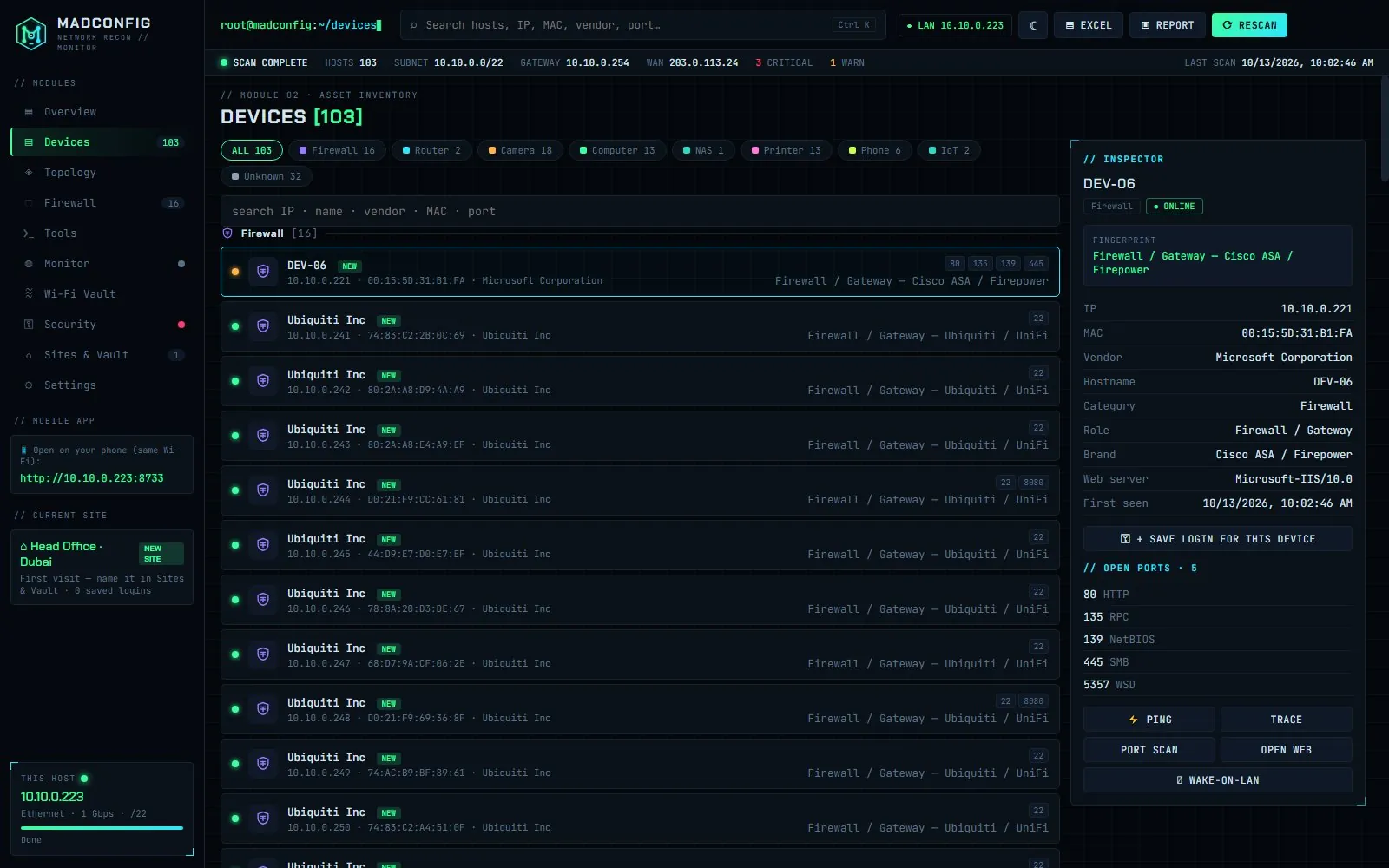
- Press Scan. In about a minute you get every device on the subnet with its IP, MAC, vendor and hostname. Madconfig uses ICMP, ARP, mDNS, NetBIOS and TCP probes together, so devices that ignore ping still show up.
- Type in the search box: a brand (HP, Hikvision, Ubiquiti), part of a MAC address, a name or a port. Devices are also sorted into types such as Firewall, Router, Camera, Computer, NAS and Printer.
- Click the device to see its open ports, or open its web panel directly.
If the device's IP keeps changing
A device that gets its address from DHCP can come back with a different IP after a restart. Two fixes:
- DHCP reservation: in the router, reserve the current IP for that device's MAC address. The device keeps getting the same IP.
- Find it by MAC, not IP: the MAC address doesn't change. Madconfig remembers devices by MAC per site, including the name you give them, so next time you scan you see the device under your name even if its IP moved.
Use these methods only on networks you own or are authorised to manage.