Step 0: find your subnet
Open Command Prompt (Win + R, type cmd) and run:
ipconfigLook at your active adapter. An IPv4 Address of 192.168.1.25 with a Subnet Mask of 255.255.255.0 means your devices are somewhere between 192.168.1.1 and 192.168.1.254. The Default Gateway is your router or firewall.
Method 1: the router or firewall client list
Open the gateway address in a browser, sign in and find DHCP clients, Attached devices or Client list. You get names, IPs and MACs of everything that asked the router for an address.
Misses: anything with a static IP (servers, printers, cameras, switches) and devices on other VLANs. You also need the router password.
Method 2: File Explorer → Network
Open File Explorer and click Network. If Windows asks, turn on network discovery (only on a network you trust, set as Private). Windows shows computers, media devices and printers that announce themselves.
Misses: most cameras, switches, firewalls, phones and IoT devices, because they don't advertise to Windows.
Method 3: arp -a in Command Prompt
The ARP table lists devices your PC has recently talked to on the local subnet:
arp -aEach line is an IP address and its MAC (physical) address. On its own the table is usually short, because Windows only remembers devices it has contacted. Fill it first with a ping sweep (next method), then run arp -a again.
The first six characters of a MAC address identify the manufacturer. Look them up in a public OUI database to see which entries are, for example, HP printers, Ubiquiti access points or Hikvision cameras.
Method 4: PowerShell ping sweep + Get-NetNeighbor
In PowerShell 7 (replace 192.168.1 with your subnet):
# ping every address once, in parallel
1..254 | ForEach-Object -Parallel { if (Test-Connection "192.168.1.$_" -Count 1 -TimeoutSeconds 1 -Quiet) { "192.168.1.$_" } } -ThrottleLimit 64

# then list what Windows learned, with MAC addresses
Get-NetNeighbor -AddressFamily IPv4 | Where-Object State -ne 'Unreachable' | Sort-Object IPAddress
This finds anything that answers ping, and the neighbour table also catches some devices that ignore ping but answered ARP.
Misses: nothing tells you what each device is, and devices that block ping and haven't talked to you yet stay invisible.
Method 5: use a network scanner (Madconfig)
A scanner runs all of the above at once and then asks each device what it is. Madconfig, our Windows network scanner, combines ICMP ping, ARP, mDNS and NetBIOS names and TCP probes on 30 common ports, then matches vendors so each device is sorted into Firewall, Router, Camera, Computer, NAS, Printer, Phone, TV or IoT.
- Download Madconfig or get it from the Microsoft Store. Every feature is unlocked for 5 days.
- Right-click it and choose Run as administrator so it can read the full ARP table.
- Press Scan. A typical office /24 takes about a minute.
- Browse the device list by category, or open Topology to see everything on one map.
- Export the result as a PDF, HTML or Excel report.
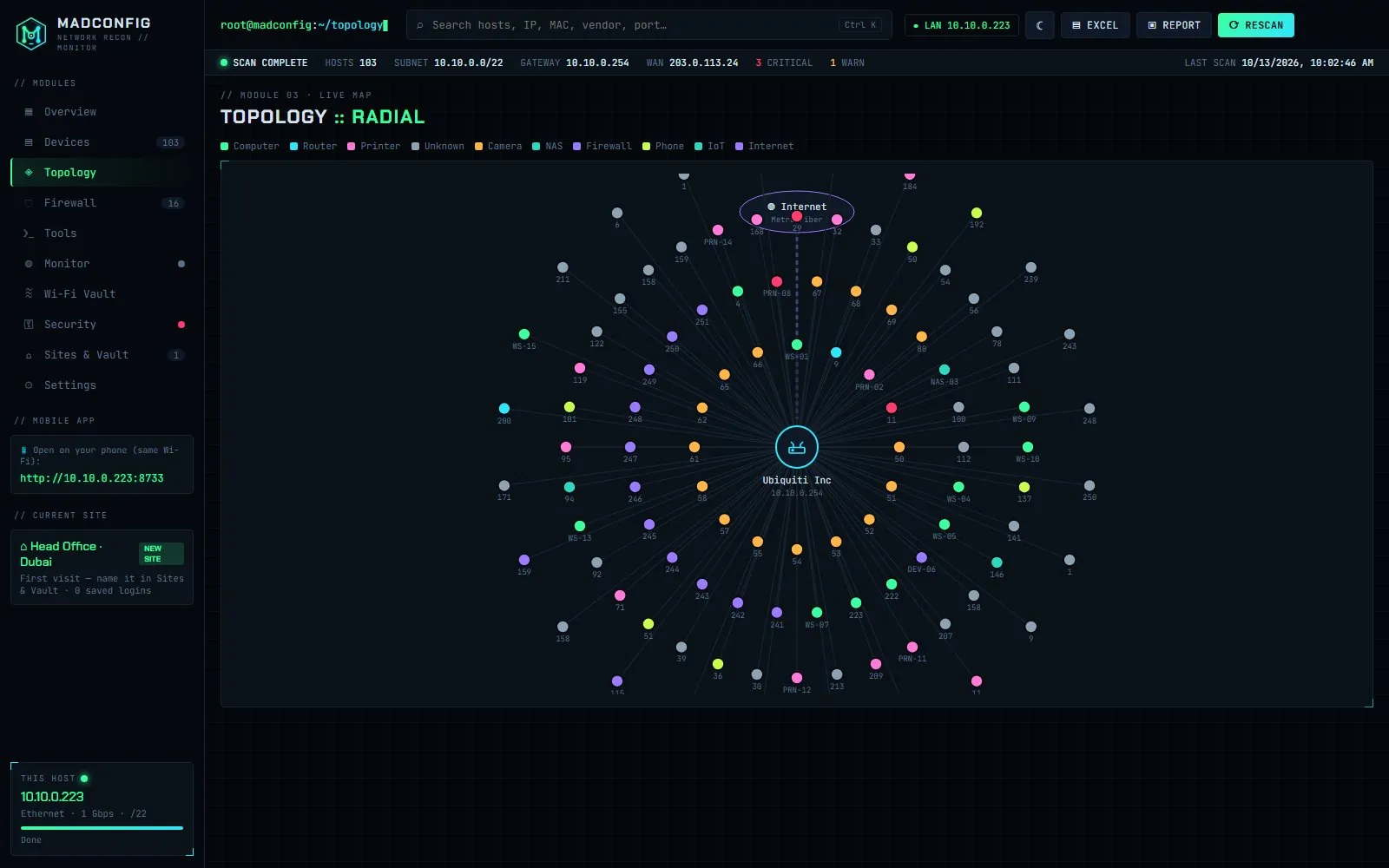
Turn on Monitor if you want to know when something new joins: Madconfig re-scans every few minutes and shows a Windows notification when a device appears or goes offline.
Which method finds what
| Method | Static-IP devices | Devices that block ping | Tells you the device type |
|---|---|---|---|
| Router client list | No | Yes (if DHCP) | Sometimes, by name |
| File Explorer → Network | Some | Some | PCs and printers only |
| arp -a after a ping sweep | Yes | Partly | No (vendor via MAC lookup) |
| PowerShell + Get-NetNeighbor | Yes | Partly | No |
| Madconfig scan | Yes | Yes (ARP + TCP) | Yes, 10 categories |
Why devices go missing
- Different VLAN or subnet. Guest Wi-Fi, CCTV and phones are often separated. Connect to that network, or scan its range from a PC that can reach it.
- Wi-Fi client isolation. Many access points stop wireless clients seeing each other.
- Sleeping devices. Phones and laptops drop off the network in standby.
- Firewalls on the device. Windows PCs block ping by default; ARP and TCP probes still see them.
Only scan networks you own or are authorised to manage. Looking for cameras specifically? See how to find IP cameras and NVRs.