Before you start
- Connect your Windows laptop to the same network or VLAN as the cameras. Many sites put CCTV on a separate VLAN or on the NVR's own PoE ports, where an office PC cannot see them.
- Note your own address and subnet: open Command Prompt and run
ipconfig. - Only scan networks you own or are authorised to work on.
Method 1: the router's client list
Log in to the router or firewall and open the DHCP leases or connected clients page. Cameras often show names like HIKVISION, IPC, DH-IPC-… or just their MAC address.
Limit: cameras installed with a static IP never appear in the DHCP list, and that is most professionally installed CCTV.
Method 2: arp -a and MAC vendors
Windows keeps a table of devices it has talked to. Ping the whole subnet first so the table fills, then read it. In PowerShell (replace 192.168.1 with your subnet):
1..254 | ForEach-Object { Test-Connection -Count 1 -TimeoutSeconds 1 "192.168.1.$_" -ErrorAction SilentlyContinue } | Out-Null
arp -a
The first half of each MAC address (the OUI) identifies the manufacturer. Look the prefixes up in any public OUI database: entries registered to Hangzhou Hikvision, Zhejiang Dahua, Reolink, Axis Communications, Uniview, Hanwha and similar are your cameras and recorders.
Limits: slow by hand, the ping loop needs PowerShell 7 for -TimeoutSeconds, and white-label cameras may carry the chip maker's MAC instead of a camera brand.
Method 3: check camera ports
Video devices listen on well-known ports. A device answering on these is almost certainly a camera or recorder:
| Port | Used by |
|---|---|
| 554 (TCP) | RTSP video stream: most IP cameras and NVRs |
| 8000 (TCP) | Hikvision SDK / client port |
| 37777 (TCP) | Dahua TCP port (37778 UDP) |
| 34567 (TCP) | XMeye / generic Chinese DVRs and NVRs |
| 3702 (UDP) | ONVIF WS-Discovery |
| 80 / 443 | The web admin page (on almost everything, so not proof alone) |
Check one address from PowerShell:
Test-NetConnection 192.168.1.64 -Port 554TcpTestSucceeded : True means the RTSP port is open. Doing this for 254 addresses × 5 ports by hand is where people give up and use a scanner.
Method 4: vendor tools and ONVIF
- Hikvision SADP finds Hikvision devices on the local segment, even ones with an IP outside your subnet, and shows their model and firmware.
- Dahua ConfigTool does the same for Dahua devices.
- ONVIF Device Manager and similar tools send an ONVIF discovery request and list any ONVIF camera, whatever the brand.
Limit: each tool only sees its own brand (or only ONVIF-enabled devices), and most sites are a mix.
Method 5: scan with Madconfig
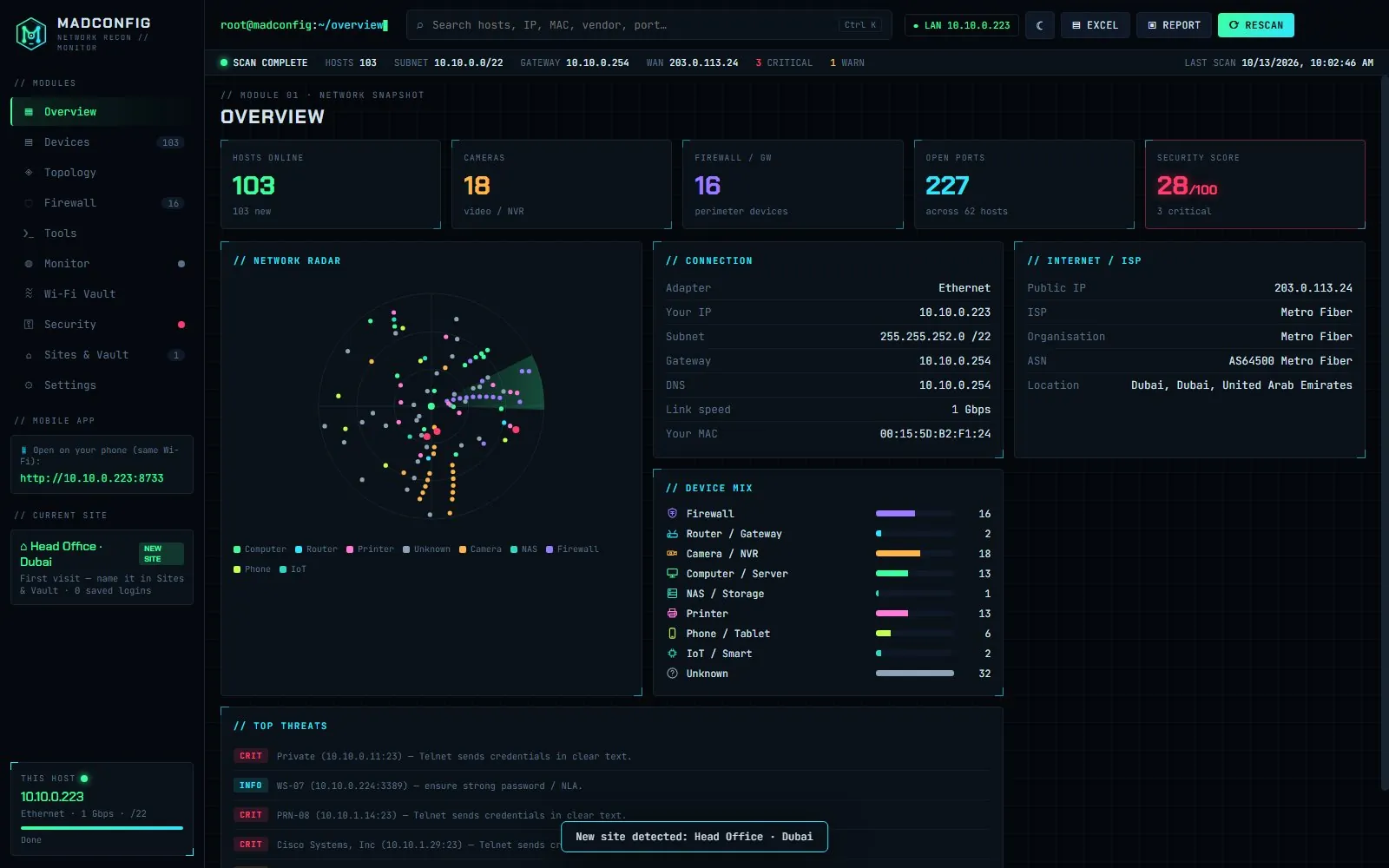
Madconfig combines the methods above in one scan: it pings and ARP-scans the subnet, reads mDNS and NetBIOS names, probes 30 common ports per host, including RTSP (554), 8000 and the Dahua (37777) and XMeye (34567) DVR ports, and matches MAC vendors. (ONVIF discovery is not part of the scan, so pair it with Method 4 for unusual brands.) Cameras and recorders land in their own Camera category.
- Download Madconfig (or get it from the Microsoft Store) and install it. Right-click → Run as administrator for a complete ARP table.
- Press Scan. On a typical /24 office network it finishes in about a minute.
- Open the Cameras count on the overview, or filter the device list by Camera.
- Click a camera to see its IP, MAC, vendor and open ports, and open its web panel. Save the login once; next visit Madconfig fills it in for that exact device (matched by MAC, not IP).
After you find them
- Change default passwords. Cameras with factory logins are a common way into a network.
- Close Telnet and update firmware. Madconfig's security audit flags Telnet and other risky open ports.
- Separate CCTV onto its own VLAN, and don't forward camera ports to the internet.
- Document it. Export a PDF or Excel report so the next technician doesn't start from zero.